

Debian persistent live system
They say Debian runs on anything…

Perfect for use as a live boot system
Live boot systems come in handy in troubleshooting hardware, examining and manipulating systems and exporting information.
Forensics and security focused Linux distributions
There are numerous forensics and security focused Linux distributions out there, to name a few – Kali Linux, Parrot OS, CAINE Linux, Tsurugi Linux, Sumuri’s PALADIN. All these Linux distributions are based on Debian or Ubuntu (which is based on Debian).
Why I still opt for good ol’ Debian as the go-to live distro
I am not into penetration testing therefore I do not need the latest and greatest, also I am comfortable working with CLI and I don’t need no fancy GUI’s. What I need is a stable “no bullshit” experience to accomplish a few simple tasks – boot, explore, image, mount & manipulate (move & resize partitions, edit files).
Debian persistent live forensic system

It can boot pretty much any device that has a 64-bit CPU, does not matter if the device uses BIOS or UEFI, and it gets along with secure boot real nice. The boot menu is boringly grey, as not to attract any unnecessary attention when used in public.
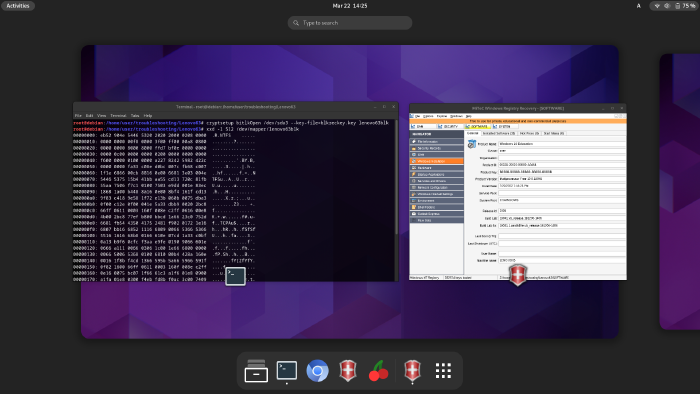
How to create a Debian persistent live system
Get the live .iso
Open the official Debian homepage and choose the live image that features the desktop environment of your choice. I really enjoy GNOME but if you intend to boot older hardware XFCE would probably be the best choice.
Customize the .iso
The very minimum customization requirement – a GRUB boot menu entry in both BIOS and UEFI boot environments. The commands should be run as root.
Prerequisites: xorriso, isolinux, rsync
1. Mount the image to a mountpoint of your choice
mount debian-live.iso /media/your-mount-point
2. Sync the image content to a folder of your choice
rsync -a /media/your-mount-point /home/user/synced-iso
3. Add a GRUB boot menu entry for BIOS by editting /synced-iso/isolinux/live.cfg
Example boot menu entry from my system
label live-amd64
	menu label ^Persistent live forensic system (amd64)
	menu default
	linux /live/vmlinuz
	initrd /live/initrd.img
	append boot=live components noswap noautomount persistence
The boot parameters no swap and noautomount are commonly used to ensure forensic soundness – the disk drives present in the device will not be mounted or used for swap space.
4. Add a GRUB boot menu entry for UEFI by editting /synced-iso/boot/grub/grub.cfg
Example boot menu entry from my system
menuentry "Persistent forensic live system (amd64)" --hotkey=l {
	linux	/live/vmlinuz-6.1.0-10-amd64 boot=live components noswap noautomount persistence findiso=${iso_path}
	initrd	/live/initrd.img-6.1.0-10-amd64
}
5. Add a boot screen background of your choice
The files to be edited are:
/synced-iso/isolinux/splash800x600.png
/synced-iso/isolinux/splash.png
6. Build your custom .iso
I use the following Bash oneliner to build my .isos, just make sure you set the correct synced-iso directory at the end of the oneliner and run it from the parent directory.
xorriso \
    -as mkisofs \
    -r \
    -V "Debian 12 BigD Repack" \
    -o "debian12_BigD_repack_$(date '+%d-%m-%Y_%H.%M.%S').iso" \
    -R \
    -J \
    -joliet-long \
    -cache-inodes \
    -isohybrid-mbr /usr/lib/ISOLINUX/isohdpfx.bin \
    -partition_offset 16 \
    -b isolinux/isolinux.bin \
    -c isolinux/boot.cat \
    -boot-load-size 4 \
    -no-emul-boot \
    -boot-info-table \
    -eltorito-alt-boot \
    -e boot/grub/efi.img \
    -no-emul-boot \
    -isohybrid-gpt-basdat \
    -isohybrid-apm-hfsplus \
    synced-iso
After the above command is finished, you should have your custom .iso file. Now it is time to dump the .iso to a disk and to add a partition for persistence.
Creating a persistent bootable USB stick with the custom .iso
1. Dump the .iso to a USB stick
dd if=my-custom.iso conv=sync,noerror bs=8192 of=/dev/sdX
2. Create a partition for persistence
All the user data including the installed programs will be stored in this partition.
fdisk --wipe=never -t dos /dev/sdX
fdisk features an interactive prompt and in order to create a third partition on your USB stick, that would occupy the remaining disk space, you can just hit: n, p, Enter, Enter, Enter, w.
3. Create an EXT4 filesystem labeled “persistence” in the newly created partition
mkfs.ext4 -L "persistence" /dev/sdX3
4. Mount the partition and create a configuration file for persistence
mount /dev/sdX3 /media/mountpoint-of-choice
echo "/ union" > /media/mountpoint-of-choice/persistence.conf
That’s it. Time to boot.
First things first. Adding “User” to sudoers
On the first boot you should add the default “User” to sudoers, so you can escalate privileges with sudo. To do this you can just enter the super user mode with su and edit the /etc/sudoers file adding the following line:
User ALL=(ALL:ALL) ALL
P.S. The default password for the default “User” is “live”.
Colorizing the terminal for the root account
Most of the tasks have to be run from the root account and by default it does not have any colors. In order to grant the root account some colors you can copy the default users .bashrc file to root’s home directory. You have to be root to do this.
cp /home/User/.bashrc /root/.bashrc
Now the root account will have colors. To change the color of root’s username from green to red edit root’s .bashrc and look for the following line:
PS1='${debian_chroot:+($debian_chroot)}\[\033[01;32m\]\u@\h\[\033[00m\]:\[\033[01;34m\]\w\[\033[00m\]\$ '
and change 32 to 31:
PS1='${debian_chroot:+($debian_chroot)}\[\033[01;31m\]\u@\h\[\033[00m\]:\[\033[01;34m\]\w\[\033[00m\]\$ '